When AI works on a task, it eventually needs things only a person can do. Instead of passing a text file back and forth, the AI creates a sheet under “AI requests” in your project, and people answer each request in a field that fits it. The AI then reads the answers and carries on.
Have your AI write them
- Connect your AI to Mockedule via MCP and choose 読む・書き込む (read, write) on the consent screen (Works with your AI)
- Ask your AI to “write anything you need a person to do as AI requests in Mockedule.” Mention the project name so it knows where to write them
- When the AI creates a sheet, it appears right away under the “AI requests” tab in the project header. The number on the tab is how many open requests are assigned to you
If you want Claude Code to always do this, add the same sentence to CLAUDE.md in your repository. The AI puts what it needs from one session on one sheet, one task per request, with steps written as commands you can copy.
AI usually writes the requests, but internal members can also create sheets in the app. Use “Create sheet” (+) in the sheet list, and “Add request” on a sheet.
Sheets and requests
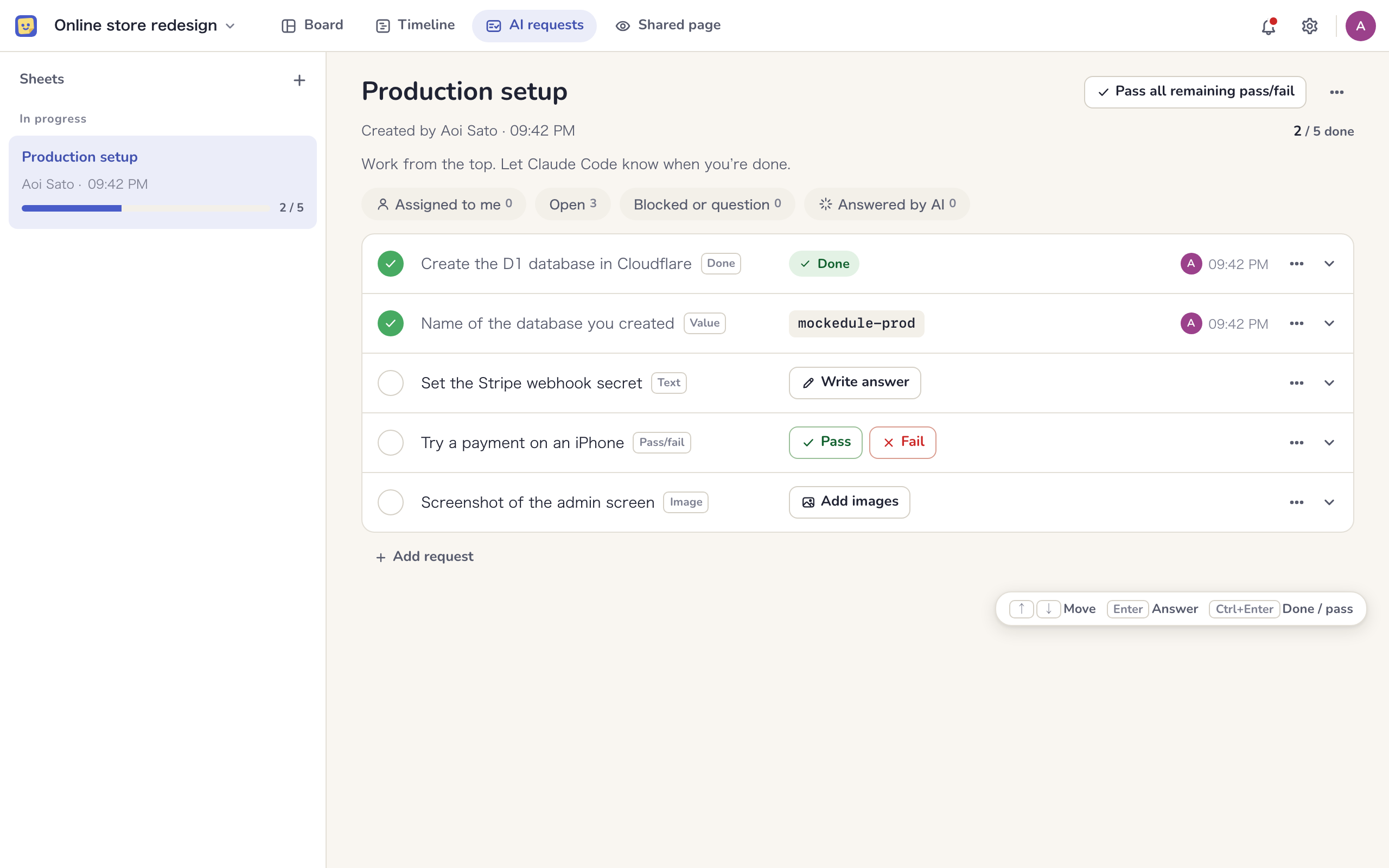
- The list on the left shows sheets in progress, not started and done, in that order. The sheet header shows which AI connection created it, such as “Claude Code created this”
- Each request shows its title and answer field on one line. Click the title to show the steps, and use “Copy” to copy a code block
- When you are done with a sheet, choose “Archive” from the sheet menu. Archived sheets are grouped under “Archived” at the bottom of the list and are read-only for everyone. Use “Restore from archive” to answer again
- Use the filters “Assigned to me”, “Open”, “Blocked or question”, “Answered by AI” and “Overdue” to narrow the requests
- Requests with a due date show it under the title. It reads “Today” on the day, and turns red once it’s past due and not done
Answering
Each request has a fixed answer format, and you answer right in the row. Once answered, the row shows who answered and when.
| Format | How to answer |
|---|---|
| Done | Click “Done” |
| Pass/fail | Click “Pass” or “Fail”. For a fail, describe what happened in “What happened? (required)” and click “Answer fail” |
| Value | Enter it in the field and click “Answer”. The request decides whether it is text, a URL, a number or a date |
| Text | Click “Write answer” and write the result. Multiple lines and code are fine |
| Image | Click “Add images”, then paste, drag or choose a file. On a phone, use “Take a photo” to attach a photo |
| Choice | Pick from the choices the AI wrote. For single-choice requests, clicking a choice answers it. For multiple-choice requests, pick and then click “Submit”. When “Other” is offered, you can write an answer that isn’t listed. With the keyboard, press 1–9 to pick |
- If you can’t follow the steps, choose “Can’t do it” from the row’s “Request menu”. If something is unclear, choose “Ask a question”. Either way, you need to write a reason or question before sending
- To change an answer, use “Answer again”. To undo it, choose “Mark as open” from the menu
- You can answer with the keyboard alone. Move between requests with ↑↓, press Enter to go to the answer field, and press ⌘+Enter (Ctrl+Enter on Windows) for done or pass
- “Pass all remaining pass/fail” in the sheet header marks only the unanswered pass/fail requests as pass. It shows how many it will mark first, so you can check before confirming
- On a phone, requests appear one at a time, and “Answer and next” takes you to the next one. This suits testing on a device you hold in your hand
Handing back to the AI
When you are done, tell the AI something like “I’ve answered them.” The AI reads the answers from Mockedule and continues. It can read only the answers added since it last checked, so going back and forth several times doesn’t make it reread the same answers.
The AI can’t see the contents of images. If you want it to look at one, paste the image into your conversation with the AI. The AI can answer an image request by passing an image URL, but not requests marked “Human only”.
Don’t enter secrets
Requests and answers are read by the AI, recorded in the activity and visible to assigned external people. That’s why text that looks like an API key, password, private key or token can’t be saved. Instead of the value itself, say where you put it (for example, “ran wrangler secret put” or “added it to .dev.vars”).
If Mockedule finds a long string that looks like a key or password, it asks “Is this a secret?”. If it isn’t a secret, such as a commit ID, click “It’s not a secret” to save it. AI can’t confirm this, so if the AI tries to write the same string, it is refused.
Answers entered by AI
AI can answer on your behalf too. An answer entered by AI counts as done just like a person’s answer, and the row shows a badge with the connection name, such as “AI · Claude Code”. To review them later, use the “Answered by AI” filter to show only requests with the badge. The badge goes away when a person answers again.
Human only
Requests that need a real device or human judgment get the “Human only” mark, and AI can’t answer them. When AI creates a request in the pass/fail or image format, it gets the mark from the start. AI can add the mark but can’t remove it. Internal members remove it in the app by choosing “Remove “human only”” from the request menu.
Asking external people
- You can assign each request to one project participant. Clients and people from other companies can be assigned too
- External participants see only the requests assigned to them. If you unassign them, the request disappears from their screen even while it is open
- External participants can answer requests assigned to them even if their role only lets them view and comment on boards
- When you assign an external person, Mockedule emails them 30 minutes later. Requests assigned during that time are combined into one email that contains only the request titles and a link to the sheet. If they answer all of them within the 30 minutes, no email is sent
Comments
Open a request to see its comments below the steps and answer. Use them to check something before answering or to add context. Comments appear right away for everyone with the sheet open, and the AI can read and write them too. Comments from the AI carry an “AI” badge. External people only see comments on requests assigned to them. Only the author can edit a comment; the author and managers can delete it.
Notices
- When a request is assigned to you, we email you, bundling notices every 30 minutes. This goes to internal and external people alike, except when you assign yourself
- When a request on a sheet you created is blocked or has a question, we also email you every 30 minutes. The email lists titles and states only; open the sheet to read the details
- To stop these emails, turn off “AI request emails” in your account settings
- If “AI requests” is on in the project’s chat notifications, blocked and question requests are also posted to chat. It’s off at first because clients are often in the channel
Reuse
For checks you repeat every release, use “Duplicate” in the sheet menu to make a sheet with the same requests and no answers. Assignees are copied; answers, comments and due dates aren’t.
To use it in other projects, choose “Save as template” in the sheet menu to keep it in the workspace. When you create a sheet, pick it under “From a template”. Your AI can create sheets from templates too.
Tasks
- Choose “Create a task” in the request menu and pick a board to create a task with the request’s title and due date in the board’s inbox, linked to the request
- In a board’s task panel, “Add to AI requests” adds a request linked to the task to a sheet
Sharing
To show results such as device tests to a client, create a link with “View link” in the sheet menu. Anyone with the link can see the requests and answers without signing in. Comments, assignees and who answered aren’t shown. Archiving the sheet turns the link off. For paper, use “Export as PDF”.
Limits
| Item | Limit |
|---|---|
| Sheets (Free plan) | Up to 3 per workspace. Archived sheets don’t count |
| Sheets (paid plans) | Up to 500 per project |
| Requests per sheet | Up to 200 |
| Images per answer | Up to 4 |
When you reach the limit on the Free plan, a notice appears under the sheet list, “Create sheet” is disabled, and the AI is refused if it tries to create one. Archive sheets you no longer need to create more. If you move to a lower plan and go over the limit, your existing sheets are not deleted. You can change your plan in Plans and billing.