Run your board from Claude or ChatGPT
Mockedule comes with an MCP server. Connect the AI you already use and ask it, in plain words, to draw an architecture diagram, build screens, turn sticky notes into tasks or sum up this week's progress.
- Claude
- Claude Code
- ChatGPT
- Codex
- VS Code
Any AI that supports remote MCP servers can connect. See How to connect for the steps and the conditions for each AI.
Not just reading. Your AI can do the work.
MCP is an open standard that lets an AI operate outside services. Mockedule makes what you can do on the web available over MCP as well.
Every feature is covered
Boards, screen design, tasks, the schedule, comments and member management: about 80 tools in all. It is not read-only, and it is not a subset.
No cap on calls
There is no monthly quota and there are no credits for MCP calls. That holds on the Free plan too, and it costs nothing extra.
It is your AI doing the work
Mockedule has no built-in AI. Our servers never call an AI, and board content reaches one only when the AI you connected reads it.
Actions a person should confirm, such as billing and deleting an account, stay on the web. To prevent abuse, bursts of writes are limited to 120 per 60 seconds per person.
Ask the way you would ask a teammate
Ask in everyday words. Your AI reads the board, picks the tools it needs and writes the result. What it adds shows up on the team's board right away, and people can carry on from there.
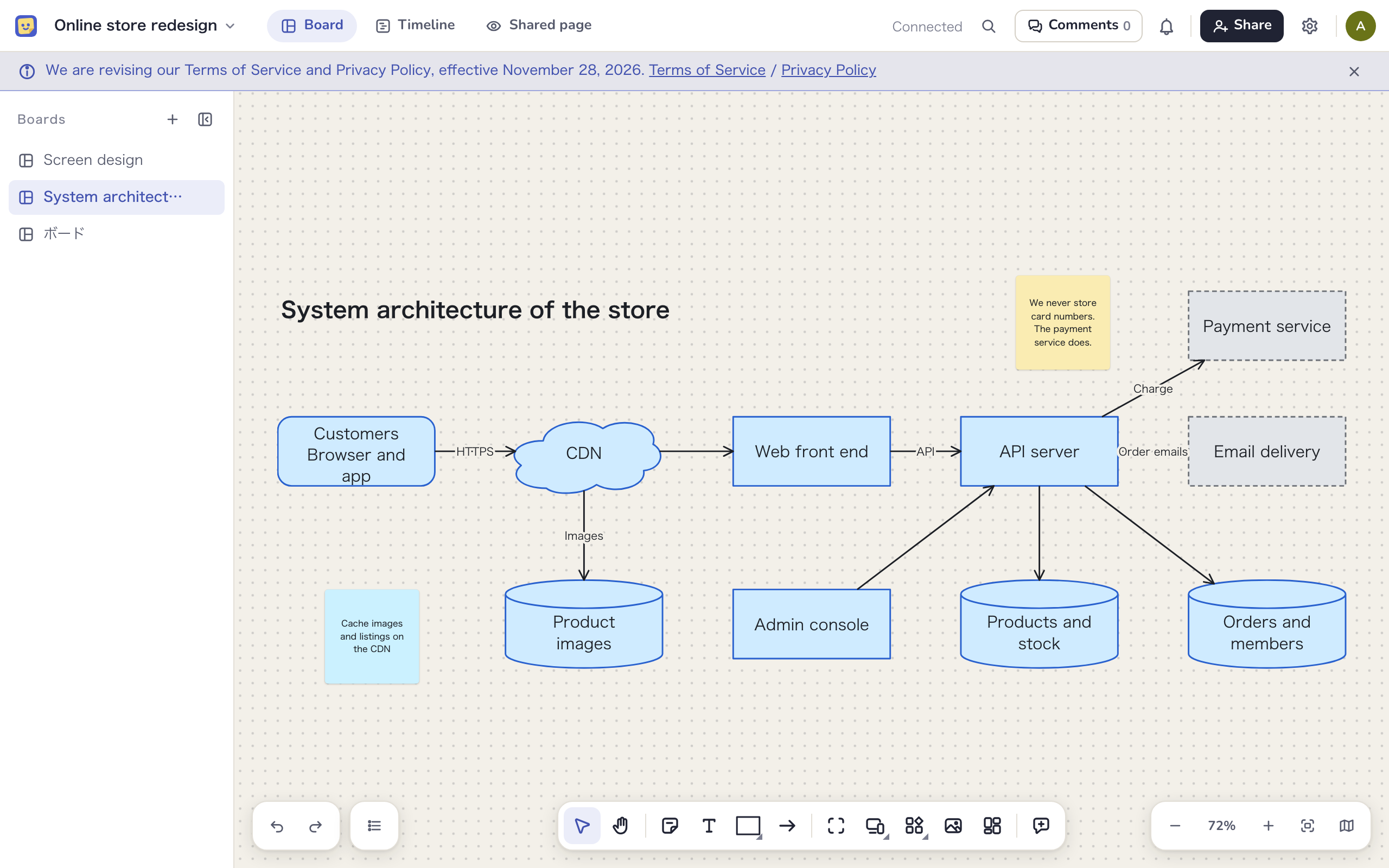
YouRead this repository and draw the system architecture on the board
Your AI reads the code and draws it with shapes and arrows. Follow up with something like "add more detail around payments" and it keeps going.
- 23 kinds of shapes, and arrows stay attached when shapes move
- Ask it to align things or space them evenly
- Edit what the AI added just like anything you added yourself
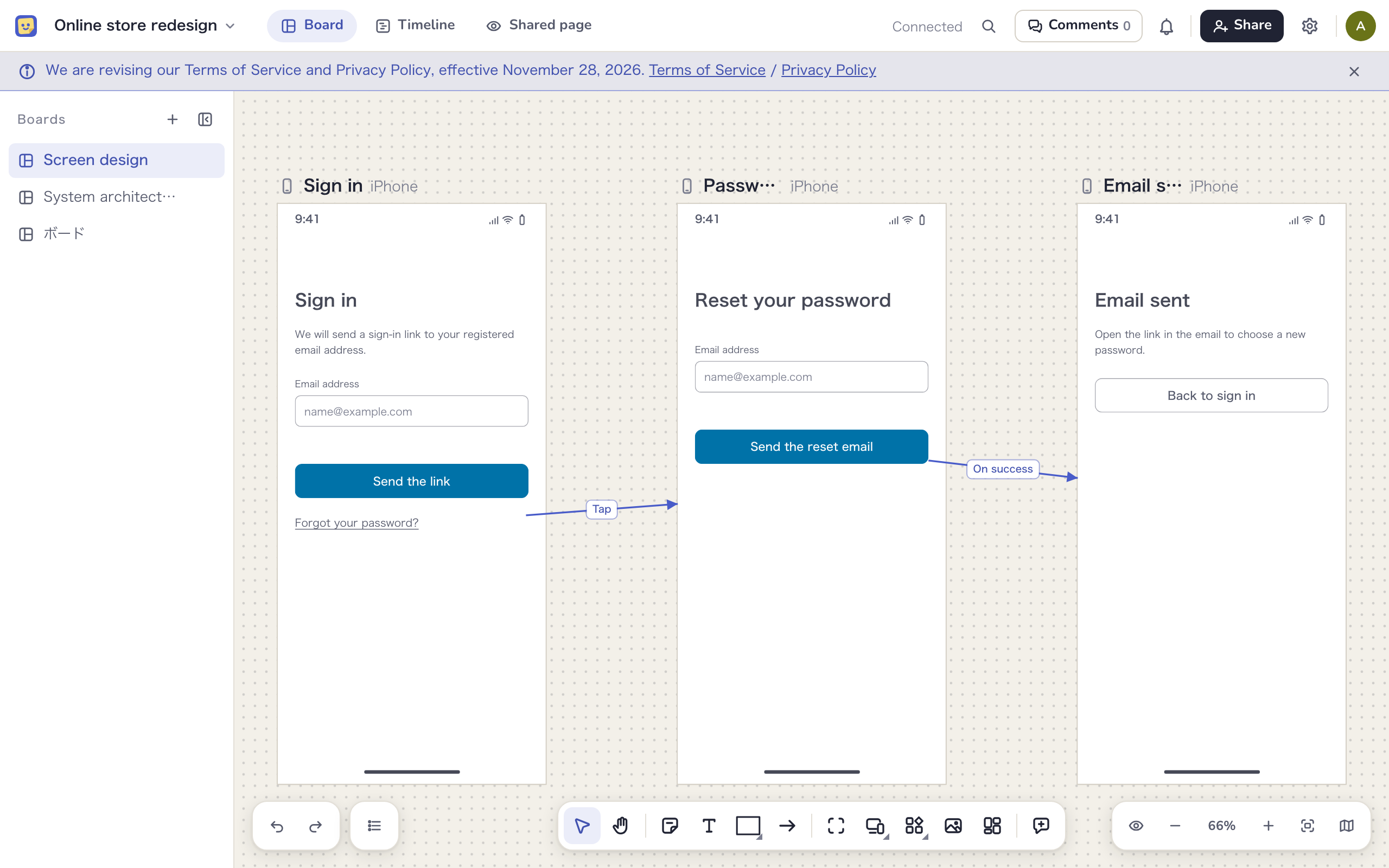
YouBuild the screens from sign-in to password reset and connect the transitions
It builds each screen from parts such as headings, inputs and buttons, and draws an arrow from the part you tap to the next screen.
- A screen can become a task and show up on the schedule
- Read the screens and transitions back as a spec and hand it to the AI that writes the code
- Click through the flow in the preview
YouWrite up this week's progress as a message I can send to the client
Your AI writes the summary in the conversation, from activity such as completed tasks, changed due dates and merged pull requests. Nothing is saved to Mockedule, so you can edit it and then use it in an email or a chat message.
- The writing guide we pass along tells the AI to ask, not guess, about anything missing from the sources, such as the reason for a delay
- Set the tone and a glossary of plain-word replacements for each project
- Copy what the client should see into the note from the team on the shared page
More things to ask
- Turn these meeting notes into sticky notes, then make them tasks with assignees and due dates
- List the overdue tasks, grouped by assignee
- Push the design phase back by a week
- Log what this pull request did on EC-12
- List the unresolved comments and suggest replies
- Sort these scattered sticky notes into frames by topic
If you can do it on the web, your AI can do it over MCP
Read
Read the project overview, tasks, timeline, board outline, comments and activity, and search by text.
Put things on the board
Add sticky notes, text, shapes, arrows, frames, images and link cards, then align, duplicate or delete them.
Screen design
Create screens, parts, shared components, transitions and annotations, and read them back as a spec.
Tasks and schedule
Create tasks, change assignees, due dates and statuses, move phase dates and log work.
Progress and comments
Read the sources for a progress summary and the view records for the shared page. Write, reply to and resolve comments.
Projects and members
Create boards and projects, invite participants, change roles and link GitHub repositories.
All it takes is one URL
Add the URL of Mockedule's MCP server to your AI's settings. There is no API key to issue and nothing to install.
https://app.mockedule.com/mcp
Claude
In the web or desktop app, open the connector settings, choose "Add custom connector" and enter the URL above.
Claude Code
Run this line in your terminal, then authenticate from
/mcp.claude mcp add --transport http mockedule https://app.mockedule.com/mcpChatGPT
On the web, add a custom MCP server and enter the URL above. Writing is available on the Business, Enterprise and Edu plans. Pro is read-only.
Codex and VS Code
For Codex, run the line below. In VS Code, run "MCP: Add Server", choose HTTP and enter the URL above.
codex mcp add mockedule --url https://app.mockedule.com/mcp
The conditions on the AI side are based on each company's public information as of November 2026. Claude, ChatGPT, Codex and VS Code are trademarks of their respective owners.
What happens when you connect
Add the URL to your AI
Enter the URL above in your AI's connector or MCP server settings.
Sign in to Mockedule
A consent screen opens in your browser. Choose the workspace to connect. The consent screen is currently in Japanese only.
Choose what to allow
Pick read only or read and write, then allow the connection.
You decide how much to hand over
The AI acts on behalf of the person who connected it and can do only what that person's role allows. An AI connected by an outside participant reads only what outside participants can see.
- When you connect, choose read only or allow writing too
- Changes made by an AI are highlighted on the board, with whose AI made them
- Writes from an AI are recorded in the workspace audit log
- The note from the team on the shared page is written by a person, and an AI cannot change it
- Revoke a connection at any time from your account settings
Start for free
Free for up to 2 members and 1 active project. External participants and clients are free in any number, and no card is required. On Free, they can view and comment.