Open settings
Click your avatar in the top-right corner and choose “Settings” to open “Profile & display” in your account settings. “Help” in the same menu opens this help in a new tab.
The left side of the settings screen lists pages in three groups: Account, Workspace and Project. Anyone can open the four account pages: “Profile & display”, “Integrations”, “AI connections” and “Support”.
Type something like “appearance” or “members” into “Search settings” (⌘+K, or Ctrl+K on Windows) above the list to jump to that setting. Search works in English and Japanese.
Profile & display
Set your name and how the app looks. Changes save as soon as you make them, and “Saved” appears.
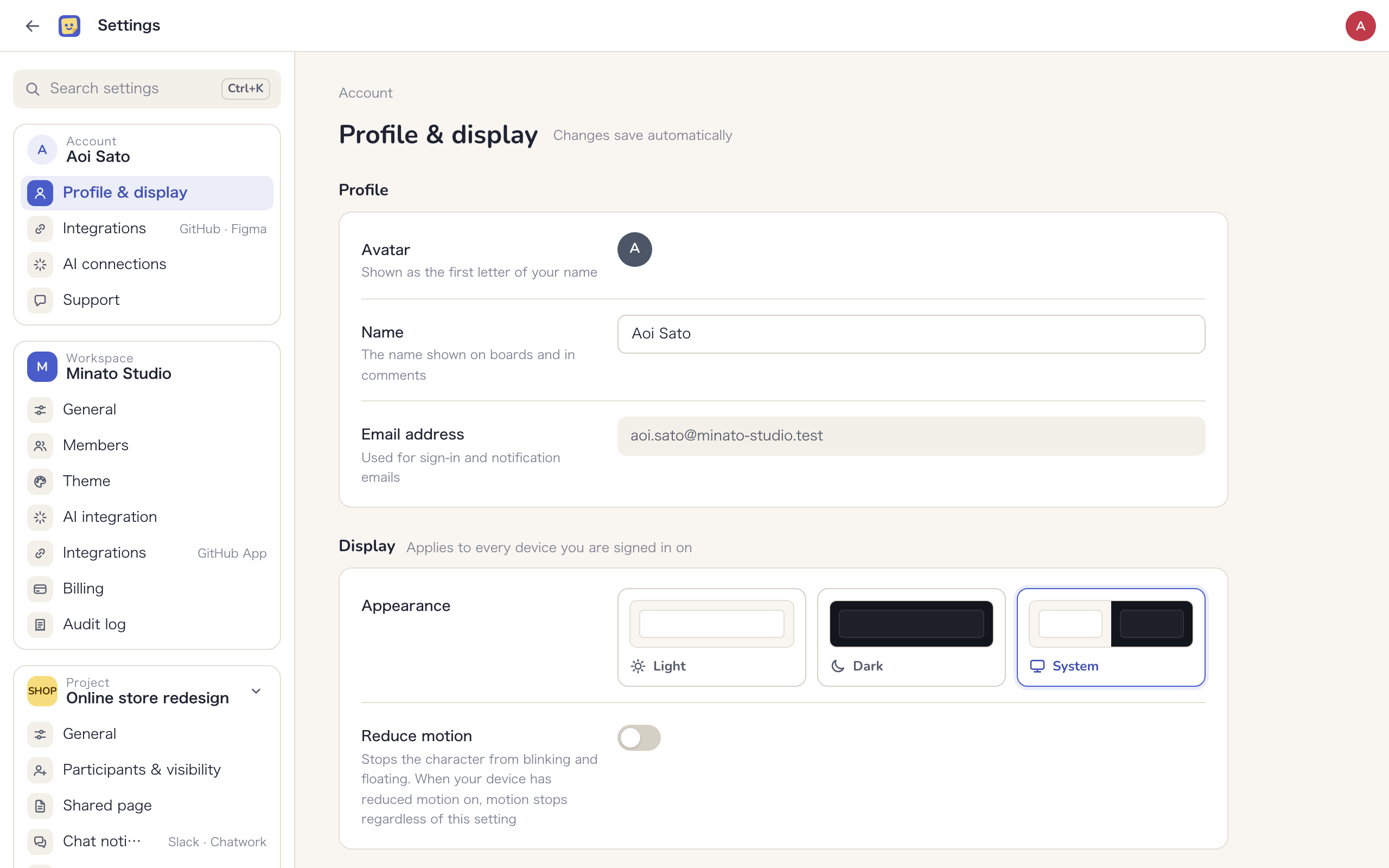
Name and email address
- “Name” is the name shown on boards and in comments. Your avatar shows its first letter; you cannot upload a picture
- “Email address” is used for sign-in and notification emails. It is shown here but cannot be changed
Appearance and motion
Under “Appearance”, choose “Light”, “Dark” or “System”. The choice applies right away, and to every device you are signed in on.
Turn on “Reduce motion” to stop the character from blinking and floating. If your device has reduced motion on, motion stops regardless of this setting.
Display language
The app shows English or Japanese based on your browser’s language setting. There is no language field in settings.
To use a language other than your browser’s, add ?lang=ja (or ?lang=en) to the end of the app’s URL. That browser keeps the language from then on, and notification emails arrive in it too.
Integrations
Connect GitHub and Figma with your own account. These connections apply to you only, not to anyone else.
GitHub account
- Click “Connect GitHub”
- Allow access on GitHub. You come back to this page, which now shows “Connected”
Once connected, your GitHub pushes, PRs and reviews appear under your name in activity. Each person can connect one GitHub account, and you cannot use an account someone else has already connected. If you click “Disconnect”, pushes and PRs that arrive from then on show your GitHub login instead.
To collect activity from repositories, install the GitHub App in the workspace and link repositories to the project. See Integrations.
Figma
Click “Connect Figma” and allow access on Figma. Mockedule then uses your Figma account to read the names, thumbnails, last updates and named versions of Figma files placed on boards. It does not read file contents or comments, and never changes your Figma files. What it reads is used for Figma designs on screens and for Figma link cards.
“Disconnect” deletes the token stored in Mockedule. Names and thumbnails already read stay on your boards.
The Figma section appears only for people who belong to a workspace. Until the Figma app passes Figma’s review, the button may read “Not available yet” and you may not be able to connect.
AI connections
This page manages the connections that let AI apps such as Claude read and write Mockedule via MCP.
- Under “Connection URL”, click “Copy” next to “MCP URL” and give it to your AI app. Below it are instructions for connecting from Claude and Claude Code
- “My connections” lists each connected AI app with when it was connected, when it was last used, and when it expires if unused
- Click “Revoke” to cut off an app until it connects again
For the steps for each AI app and what to let AI do, see Works with your AI. Owners and Admins can see every AI app connected to the workspace under “AI integration” in Workspace settings.
Support
Send Mockedule Support a question about how to use the app, something that isn’t working, billing and more. Replies arrive on this page, and you also get a notification and an email.
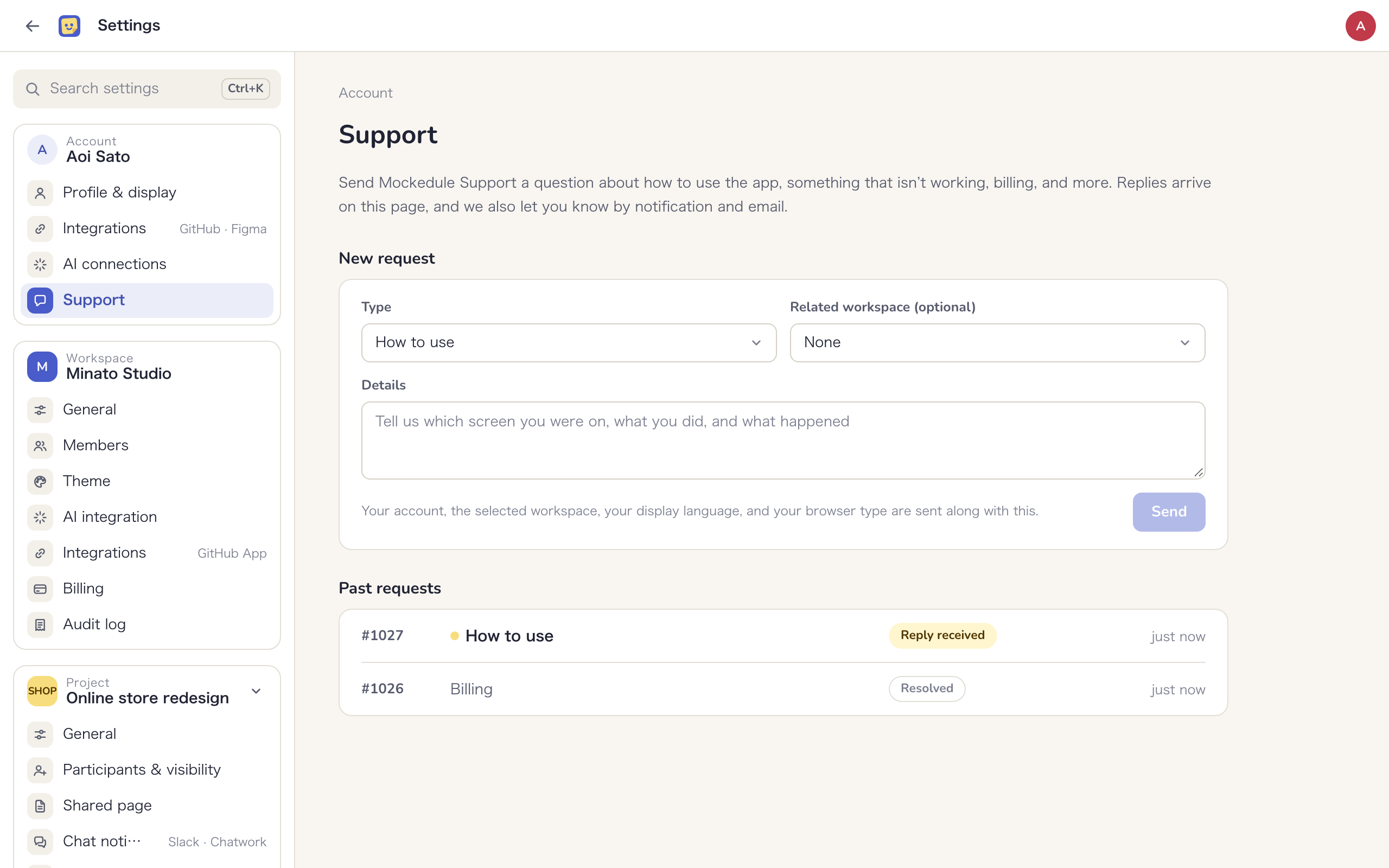
Send a new request
- Under “Type”, choose “How to use”, “Bug”, “Billing”, “Account”, “Report inappropriate content” or “Other”
- If a workspace is involved, choose it under “Related workspace (optional)”
- Under “Details”, tell us which screen you were on, what you did and what happened
- Click “Send”
Your account, the selected workspace, your display language and your browser type are sent along with it. You can have up to 5 open requests. To send more, close the ones that are resolved.
Past requests
Your requests are listed with their status: “Awaiting our reply”, “Reply received” or “Resolved”. A request with a reply you have not read shows “Unread reply”.
Open a request to read the conversation with Mockedule Support and continue it. When the issue is solved, click “Close as resolved”. Writing again reopens a closed request.
If you cannot sign in, use the form on the Contact page or send an email.
Delete your account
You can delete your account from “Danger zone” at the bottom of “Profile & display”.
- Click “Delete account”
- If it has been a while since you signed in, click “Sign in again” to confirm it is you. You come back to this page afterwards
- Review what is deleted and what remains, enter your email address to confirm, and click the delete button
- You can no longer sign in, and you leave every workspace and project you belong to. Your AI connections and GitHub and Figma connections are removed too
- Sticky notes, comments, work logs and shared page notes you wrote remain, shown as written by “Deleted user”. Tasks assigned to you show the same name as their assignee
- If you own a workspace that has other internal members, you cannot delete your account until you transfer ownership to one of them. Use “Open members” on the page to do that
- A workspace with no other internal members is deleted along with your account. All its boards and tasks are deleted, and external participants and Clients lose access. A paid plan is canceled immediately, and the rest of the period is not refunded
A deleted account or workspace cannot be restored.