Your AI puts the work that needs a person on a sheet
Setting up a server, issuing an API key, testing on a real device: even when you hand development to an AI, some work still needs a person. With AI requests, your AI writes that work on a sheet, people answer, and the AI reads the results and carries on.
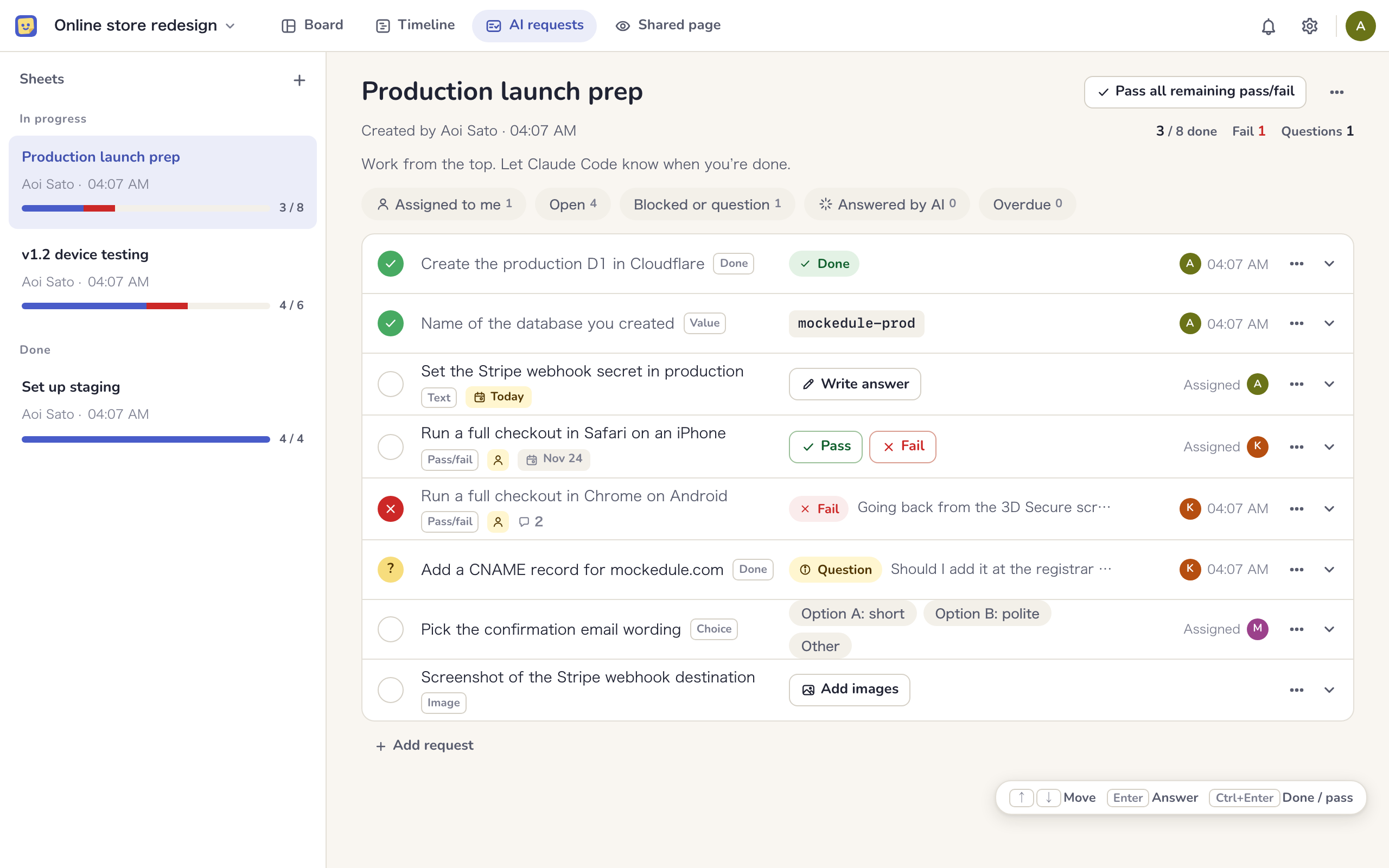
A replacement for the Markdown checklist
Working from a file of steps your AI wrote and pasting the results back into the chat stops scaling once the list grows.
- Nobody can tell who has done how much
- Results end up split between the file and the chat
- Keys and passwords get pasted by accident
- Writing down results is awkward with a device in your hand
- Progress shows as a count and a bar, with who answered and when
- Results stay on the request row, and your AI reads them as they are
- Text that looks like a key is stopped before it is saved
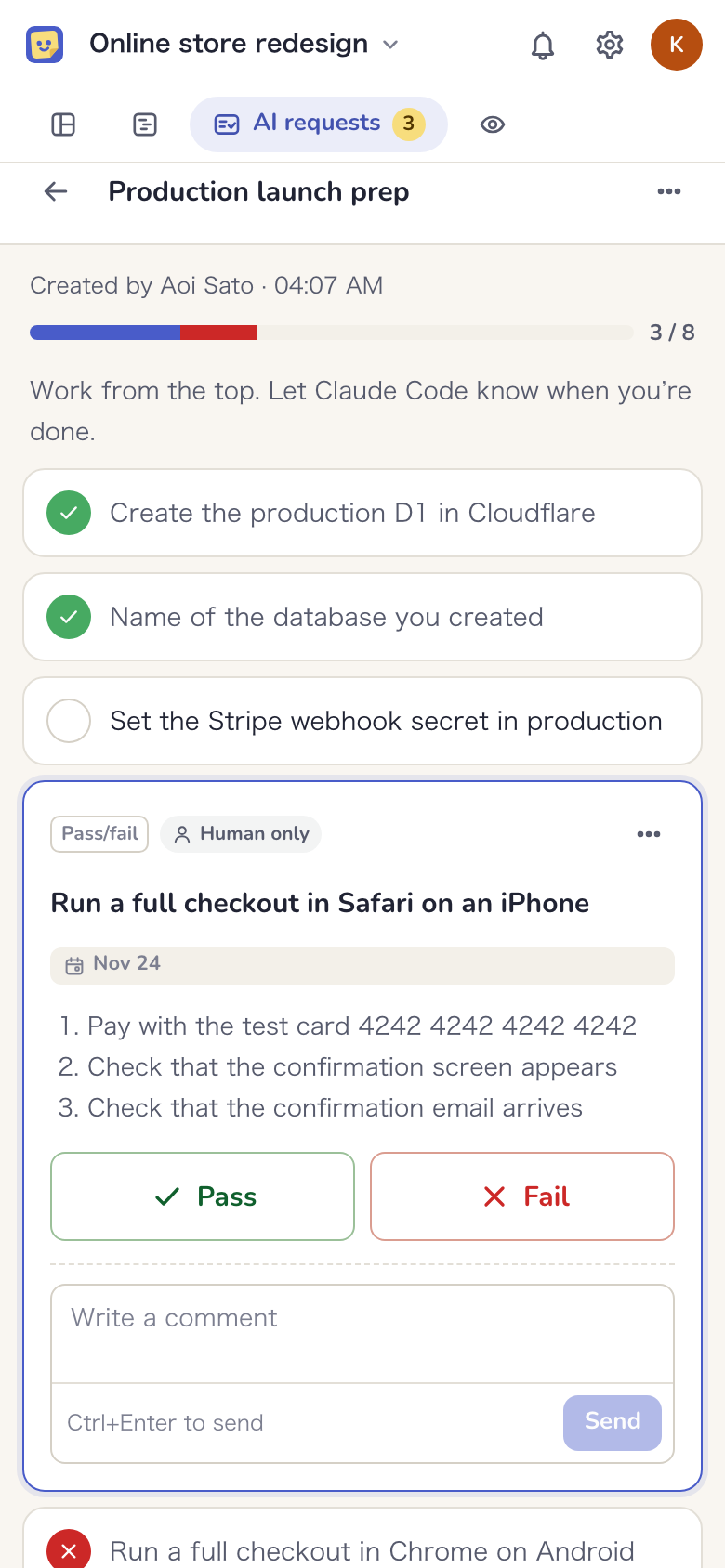
- Big buttons make it easy to answer on a phone
Your AI writes, people answer, and your AI carries on
-
1Your AI writes
Listed with steps and an answer format
When something mid-task needs a person, your AI lists it on a sheet with the steps and how to answer. Commands can be copied with a button.
-
2People answer
Open the tab and answer in place
Requests arrive in the project’s “AI requests” tab. Open the steps, do the work and answer right in the row. No other screen opens.
-
3Your AI carries on
It reads the answers and gets back to work
When you tell it, your AI reads only the answers added since it last checked. Reasons for a fail and questions come through as written, so you don’t have to explain again.
Every request has a set answer format
Your AI picks one of six formats to suit each request, so it is always clear what to send back.
Done
For work where all you report is that it is finished, such as a server setting or a DNS change.
Pass/fail
A pass takes one click. Only a fail opens a field for the reason, and you can attach images.
Value
Send back an ID you issued, a URL you published, a number you measured or a date on one line. URLs and dates are checked for their format.
Text
Send back a free-form report or the output of a command. Pasted multi-line text is formatted as code.
Image
Attach up to four photos of a device screen or an admin screen by pasting or dragging.
Choice
For a decision such as which option to go with, pick from the choices your AI listed.
Answer device tests from your phone
Test with the device in your hand and answer one request at a time with big buttons. Take a photo of a failing screen with the camera and attach it right there.
- Send back a reason when you can’t do it, or a question when something is unclear
- For a question, your AI rewrites the steps and asks again
- On a computer, work down the list with the keyboard alone
- Answers show up right away for everyone with the same sheet open
Separate what your AI handles from what a person checks
Requests and answers are read by your AI and visible to your team. What must not be kept is not kept, and what a person should do stays with a person.
-
Secrets are never saved
Text that looks like an API key or a password can’t be saved in a request or an answer. Instead of the value itself, you answer with where you put it.
-
Human only requests
Requests that only mean something when a person does them, such as a device test or a photo of a screen, get a mark, and your AI can’t answer them. Only a person can remove the mark.
-
Answers entered by AI are easy to tell apart
Your AI can answer for you when it can find the answer itself. Those answers carry an “AI” badge with the connection name, so you can review them together later.
When a request is answered, it is recorded in the project’s activity. The values and text themselves are not included in the activity.
Set assignees and due dates and work as a team
Requests are not one person’s burden. Split them between the person with server access, the person holding the device and the person who decides.
- Set an assignee and a due date for each request, and overdue requests turn red
- Assignees get an email, and requests assigned within 30 minutes are combined into one
- “Can’t do it” and “Question” can also be posted to Slack and Chatwork
- Talk things over in comments on each request, and your AI can comment too
- External participants and clients see only the requests assigned to them
Reuse the same checks as often as you like
Duplicate and templates
For work you repeat, such as checks before a release, duplicate the sheet or save it as a workspace template to use in other projects.
Linked to tasks
Create a task from a request, or add a request from a task. Work you want on the schedule shows up on the timeline.
View links and PDF
Hand over the results as a view link that opens without signing in, or as a PDF. Comments and assignee names are left out.
Connect, then ask in one sentence
Connect your AI
Add the URL of Mockedule’s MCP server to an AI such as Claude Code or Codex.
Ask your AI
Write anything you need a person to do as AI requests in Mockedule
Answer and tell it
Answer the requests that arrive in the tab, tell your AI “I’ve answered them”, and it carries on.
Mockedule has no built-in AI. The AI you connect via MCP writes the requests and reads the answers. On the Free plan you can create up to 3 sheets, and archived sheets don’t count.
Start for free
Free for up to 2 members and 1 active project. External participants and clients are free in any number, and no card is required. On Free, they can view and comment.