Write a comment
Anyone in the project can comment, including External viewers and Clients.
- Pick “Comment” in the board toolbar (or press C)
- Click the sticky note or screen you want to comment on. Click inside a frame or on an empty spot to attach the comment to that point on the board
- Write in the box that opens and click “Send”, or press ⌘+Enter
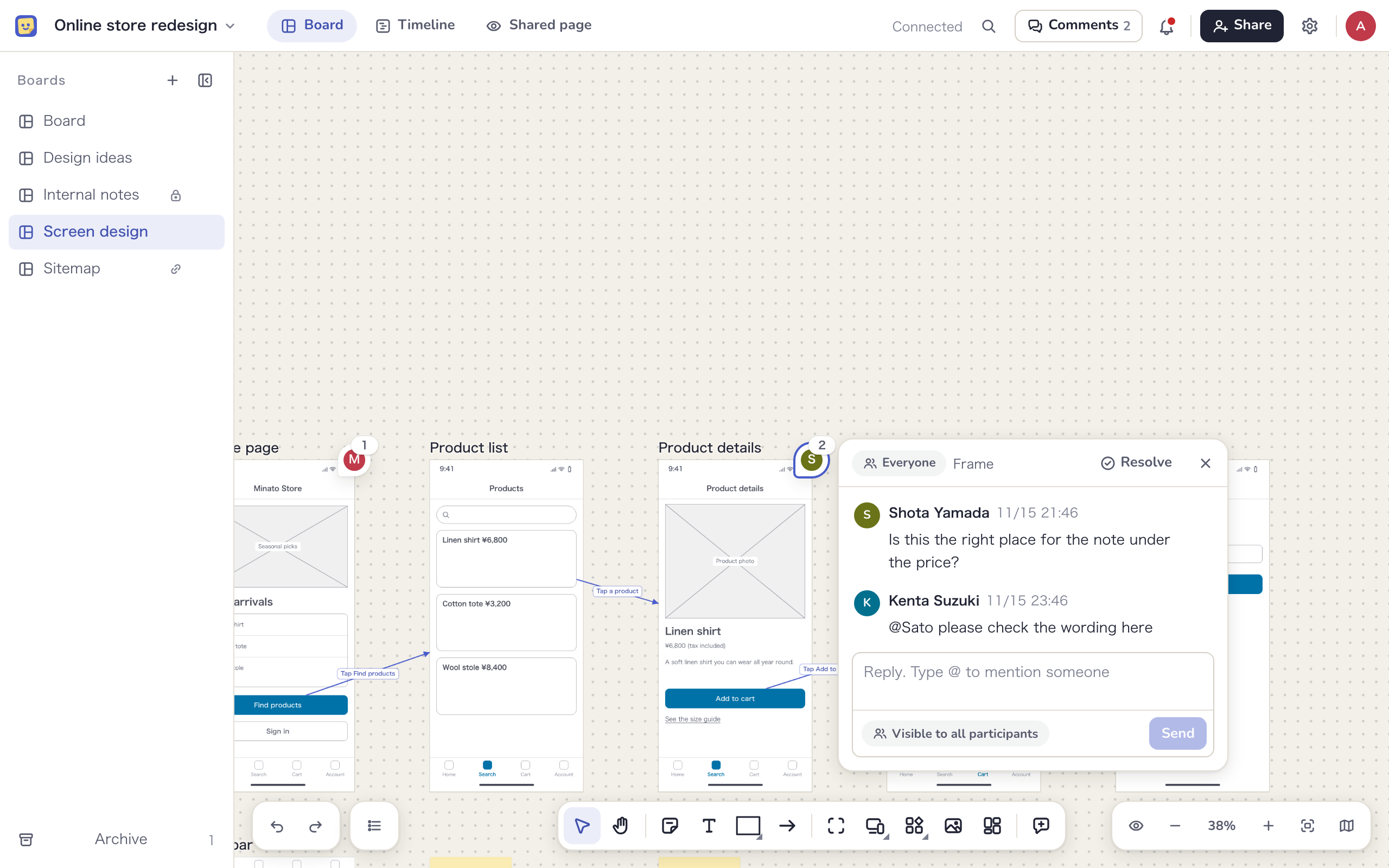
A comment on a sticky note or other item moves with it. From the task panel, use “Comment” in the comments section or “Write a comment…” at the bottom of the panel to comment on that task.
- A comment can be up to 5,000 characters
- No one can comment on an archived board
- In a task panel opened from the timeline, comments are read-only. To reply, click “Reply on the board” to open the thread on the board
Visibility and internal only
A thread is either “Visible to everyone” or “Internal only”. Click the visibility below the box to choose.
| Visibility | Who can see it |
|---|---|
| Visible to everyone | Everyone in the project. If there are external participants, the box shows how many and who they are |
| Internal only | Managers and Members only. Clients and external participants can’t see it |
- Only internal members can choose “Internal only”. Internal-only comments are shown in a different color with an “Internal only” badge
- Comments on internal-only boards are always internal only
- On shared boards, new threads start as “Visible to everyone”
Visibility is set by the first comment in a thread and can’t be changed later. Replies follow the thread’s visibility. If clients shouldn’t see something, check that “Internal only” is selected before you write.
Mentions
Type @ in a comment to see people in the project. Pick someone to mention them, and they get a notification.
- External participants in the list have an “External” badge
- In internal-only threads, external participants who can’t read the thread aren’t suggested
- You can mention up to 20 people in one comment
Reply, resolve and edit
- Reply: write in the reply box at the bottom of the thread and send it. In the task panel, clicking “Reply” opens the thread on the board
- Resolve: when the discussion is done, click “Resolve” on the thread. “Resolved the thread” appears, and “Undo” reverses it. Resolved threads are hidden by default
- Reopen: click “Reopen” on a resolved thread. Replying to a resolved thread doesn’t reopen it
- Edit or delete: use “Edit comment” and “Delete comment” on your own comments. Edited comments show “(edited)”
Managers, Members, External editors and whoever started the thread can resolve or reopen it. Only Managers can delete other people’s comments, and no one can edit someone else’s comment.
A deleted comment can’t be restored. If it has replies, “This comment was deleted” stays in its place.
If you delete a sticky note that has comments, the thread stays. Its pin disappears from the board, but you can still read it in the comment list. Undo the deletion and the pin comes back.
Comment list
Click “Comments” in the board header to open the list of comments on that board on the right. The number on the button is how many threads are unresolved. Click a thread in the list to jump to it on the board.
- Filter with “Unresolved”, “Mentions me” and “Internal only” at the top (“Internal only” is shown to internal members only)
- Open resolved threads with “Show 3 resolved” at the bottom of the list, and close them with “Hide resolved”
- Threads with a mention you haven’t read are marked “Unread mention”
Notifications
When someone mentions you, a dot appears on the bell icon (“Notifications”) in the header. Click it to see the comments that mention you across every project in the workspace, newest first.
- Click a notification to open the board with that thread
- “Mark all as read” marks every listed notification as read
- Replies from Mockedule Support to your requests show up here too (see Account settings)
- Comments notify you only when you’re mentioned. Replies without a mention don’t
Email notifications
If a mention stays unread for 30 minutes, you also get it by email. After you’ve been emailed about a mention in a thread, later mentions in the same thread aren’t emailed while it is still unread.
To send mentions to Slack or Chatwork as well, use “Chat notifications” in the project settings (see Integrations).
Activity
Activity is a record of what happened to a task. It comes automatically from board changes and GitHub, so no one has to write it up. It is listed, newest first, in the “Work log & activity” section of the task panel.
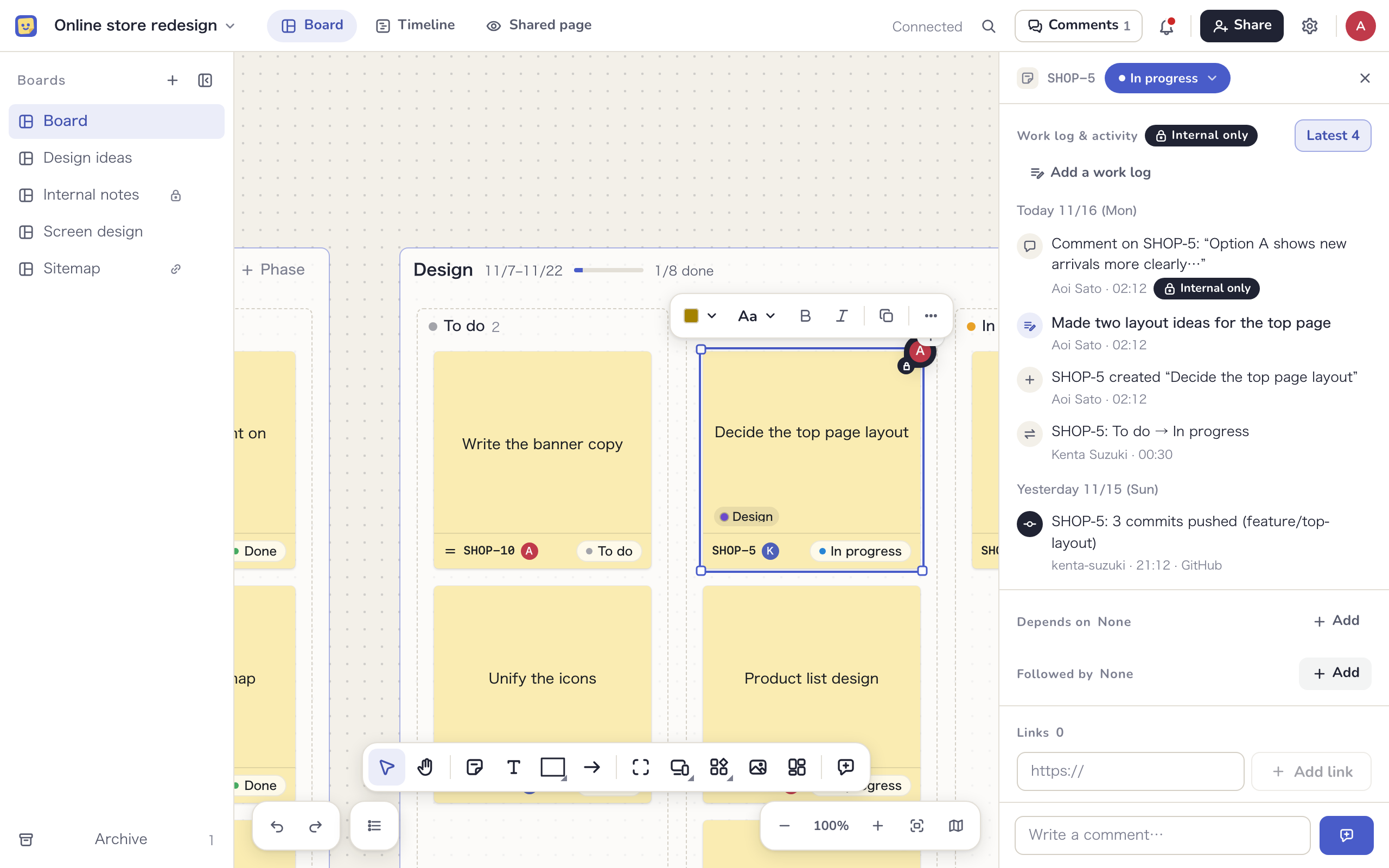
The activity records things like:
- Creating, deleting, removing or restoring a task
- Changes to the status, assignee, priority, start date or due date
- Moving to another phase or screen, editing the text or note, adding a link
- Adding or removing a dependency
- Editing inside a frame task or screen
- Writing a comment
- GitHub pushes, pull requests and issues, and named versions of Figma files (when connected)
- Work logs
When the same person makes the same kind of change to the same task within 10 minutes, the changes are combined into one entry with a count. Changes with no real meaning, such as moving a sticky note or changing its color, aren’t recorded.
- At first only the latest 4 entries are shown. Click “All (12)” to see the rest
- Up to the latest 100 entries are listed. For older ones, ask the AI connected via MCP (see Works with your AI)
| Role | What they see |
|---|---|
| Managers and Members | All activity |
| External editors | Only the work logs they wrote, under “Your work log” |
| External viewers and Clients | The section isn’t shown |
Clients never see the activity itself. The “This week” section of the shared page shows only the titles and statuses of tasks on shared boards (see Shared page and view links).
Work logs
A work log is a short note about work that doesn’t show up as a change on the board, such as research, a meeting or something you made. Write it in one line and it appears in the activity, where your AI (such as Claude) can use it when summarizing progress.
- In “Work log & activity” on the task panel, click “Add a work log”
- Write “What you did” in one line. “Details” and “Links” (up to 10) are optional
- Click “Log”, or press ⌘+Enter
- Internal members can log work on any task. External editors can only log work on tasks assigned to them
- Internal members can see work logs. A work log written by an External editor is visible to that person and to internal members, not to Clients
- Work logs on tasks on internal-only boards aren’t used as sources for summaries. The form tells you so
- You can log work on tasks on archived boards too
- You can also ask the AI connected via MCP to log work for you (see Works with your AI)