Stick a note, get a task.
Sketch a screen, get a spec.
The project board for creative teams: a whiteboard, screen design and a schedule in one. Sticky notes and screen mockups turn straight into tasks and slot into the schedule automatically.
Select a sticky note on the board and make it a task, and it shows up here
Drag the sticky notes around. Nothing is saved
Drag the ends of a bar to change its dates. Nothing is saved
Nothing moves on this screen. Open it on a desktop to drag the sticky notes around
What you put on the board becomes tasks and a schedule
Put sticky notes, shapes and screen designs on the board, and they connect to tasks and the schedule automatically. The board and the timeline show the same data, so there is nothing to copy into another tool.
-
Put it on the whiteboard
Place sticky notes, shapes, arrows, frames and images anywhere. Your team edits together in real time, and anyone can comment on a sticky note or a screen.
-
Sketch screen designs
Build screens from elements such as headings, inputs and buttons, and link them with flow arrows. Check the flow in the preview and hand it over as the design brief.
-
Anything becomes a task
Turn a sticky note, frame or screen into a task with one click. Change the assignee, due date and status right on the board.
-
Linked to the schedule
Tasks placed in a phase line up on the timeline, and due dates and delays show on both the board and the timeline.
-
Connects to GitHub and Figma
Pull requests and commits are logged as task activity automatically, and Figma designs can be linked to screens and compared side by side.
-
Do it all from your AI
Connect your AI, such as Claude or ChatGPT, via MCP, and you can simply ask it to add sticky notes, sketch screens, create tasks or sum up this week’s progress. Mockedule has no built-in AI.
Put it down, make it a task, and the schedule builds itself
-
1Put it down
Put sticky notes and screens on the board
Write to-dos on sticky notes, sketch screens from elements, and place them inside a phase.
-
2Make it a task
One click makes it a task
The sticky note becomes the task, and you set the assignee and due date on the spot.
-
3Lands on the schedule
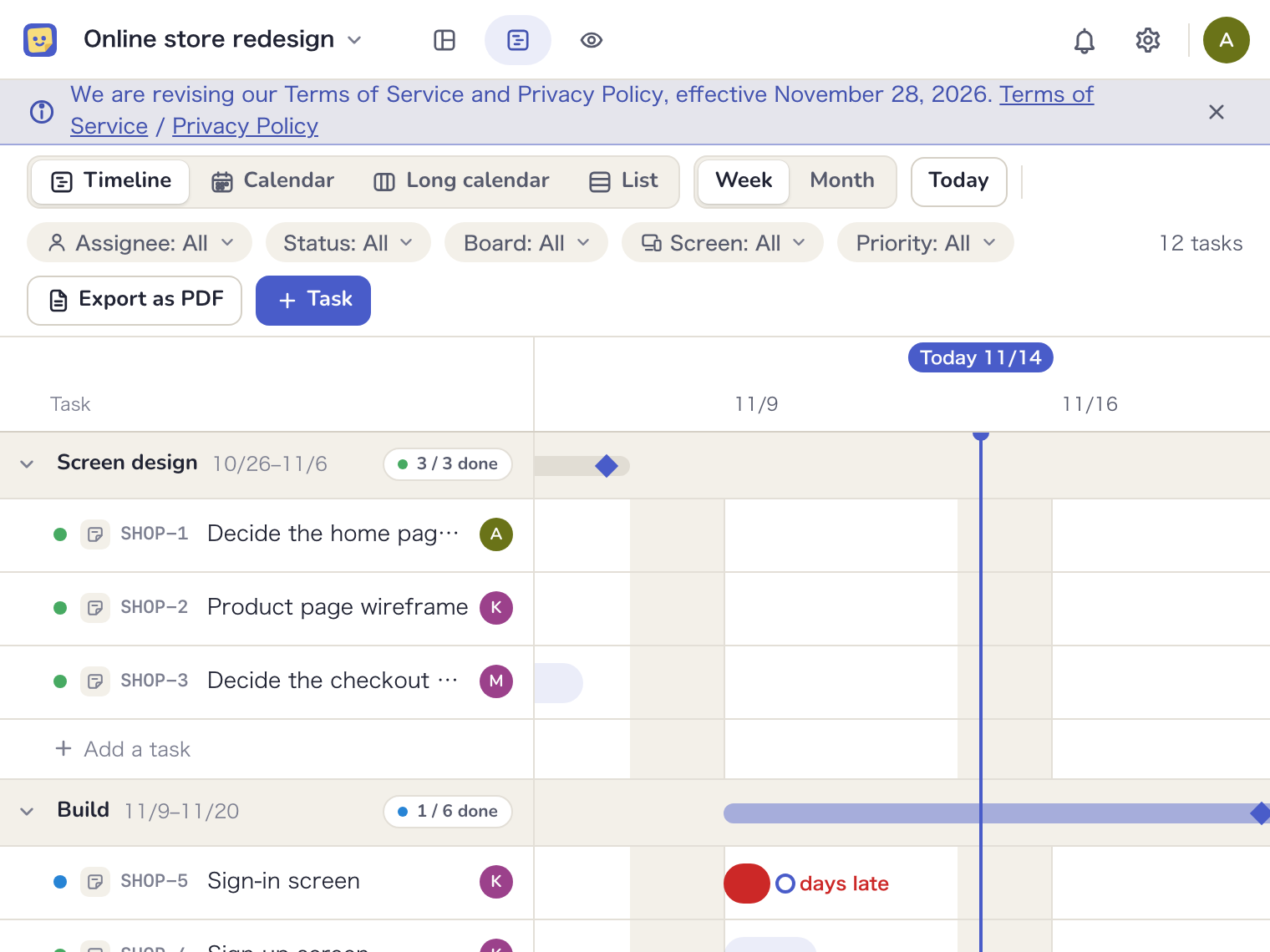
The timeline draws itself
Phases and due dates become the schedule as they are, and delays show in red.
-
4Share
A shared page for the client
The current schedule and what moved this week appear automatically on a page only the client can see.
It works as a plain whiteboard too
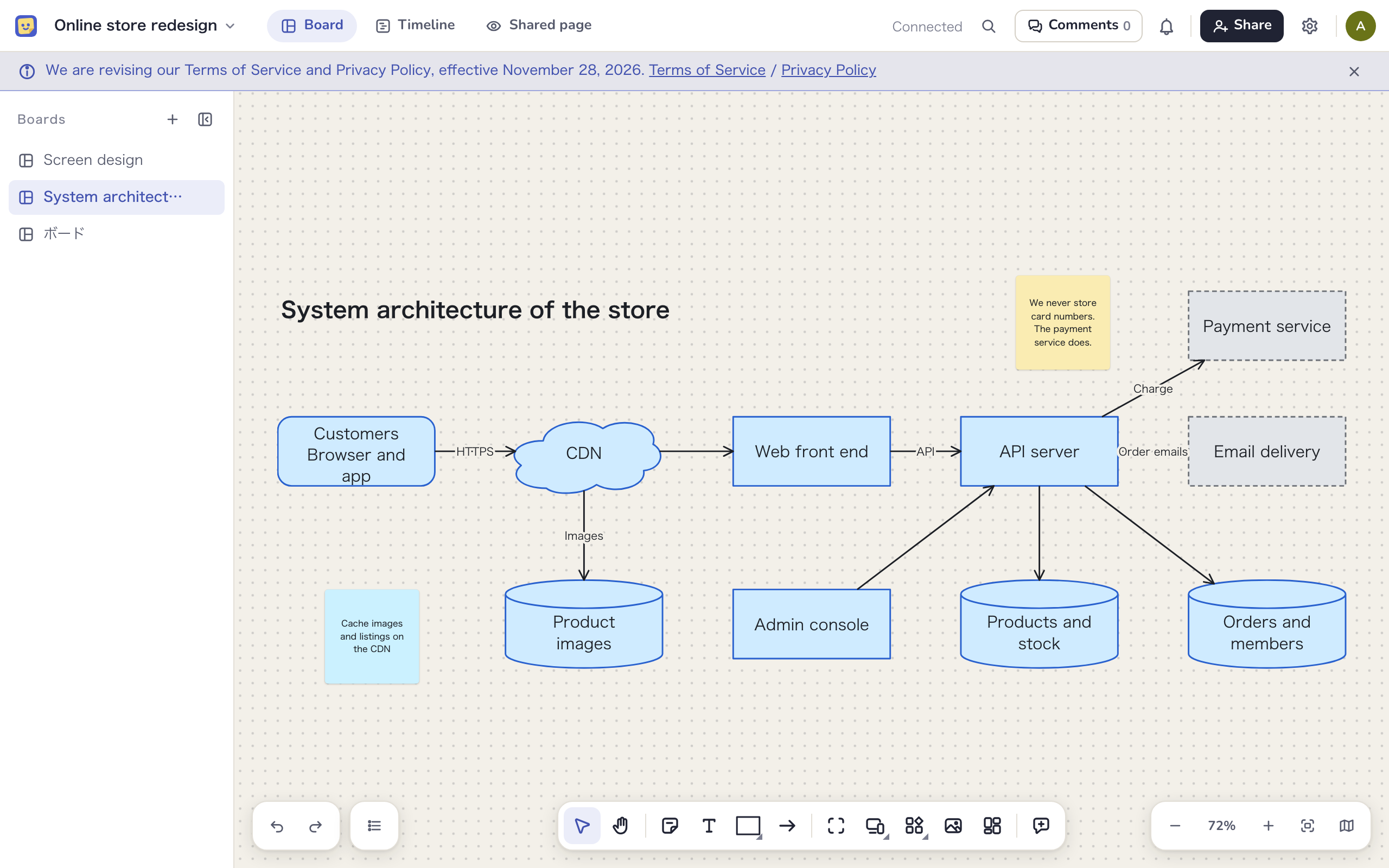
Use it as a free-form board for brainstorming, architecture diagrams or meeting notes, with nothing but sticky notes, shapes and arrows. Make as many boards as you like, and turn things into tasks only when you need to.
Screen design, right on the board
Build screens by arranging elements such as headings, inputs and buttons, and link them with flow arrows. There are no colors or fonts to pick, only the structure and the flow, so nobody mistakes it for the finished product.
- Hand screens to the people building them as the design brief
- Link Figma designs to screens and compare them in the preview
- Ask your AI for “three sign-in screens”, and they appear on the board
Run everything from your AI
Connect an AI such as Claude or ChatGPT via MCP, and your AI can read and write the board, read design briefs and summarize progress from the work activity. Nearly everything you can do on the web is covered, and there is no cap on the number of calls.
Read
Your AI reads the board layout, task progress, screen flows and design briefs as they are.
Add and create
Ask for “three sign-in screens” or “make this note a task”, and it adds them to the board and creates the tasks. People can edit whatever it adds.
Progress summaries
From activity such as task changes and merged pull requests, your AI writes up this week’s progress right in the conversation. Edit it, then use it in an email, a chat message or the note on the shared page.
Mockedule has no built-in AI. With Claude Code, one line connects it.claude mcp add --transport http mockedule https://app.mockedule.com/mcp
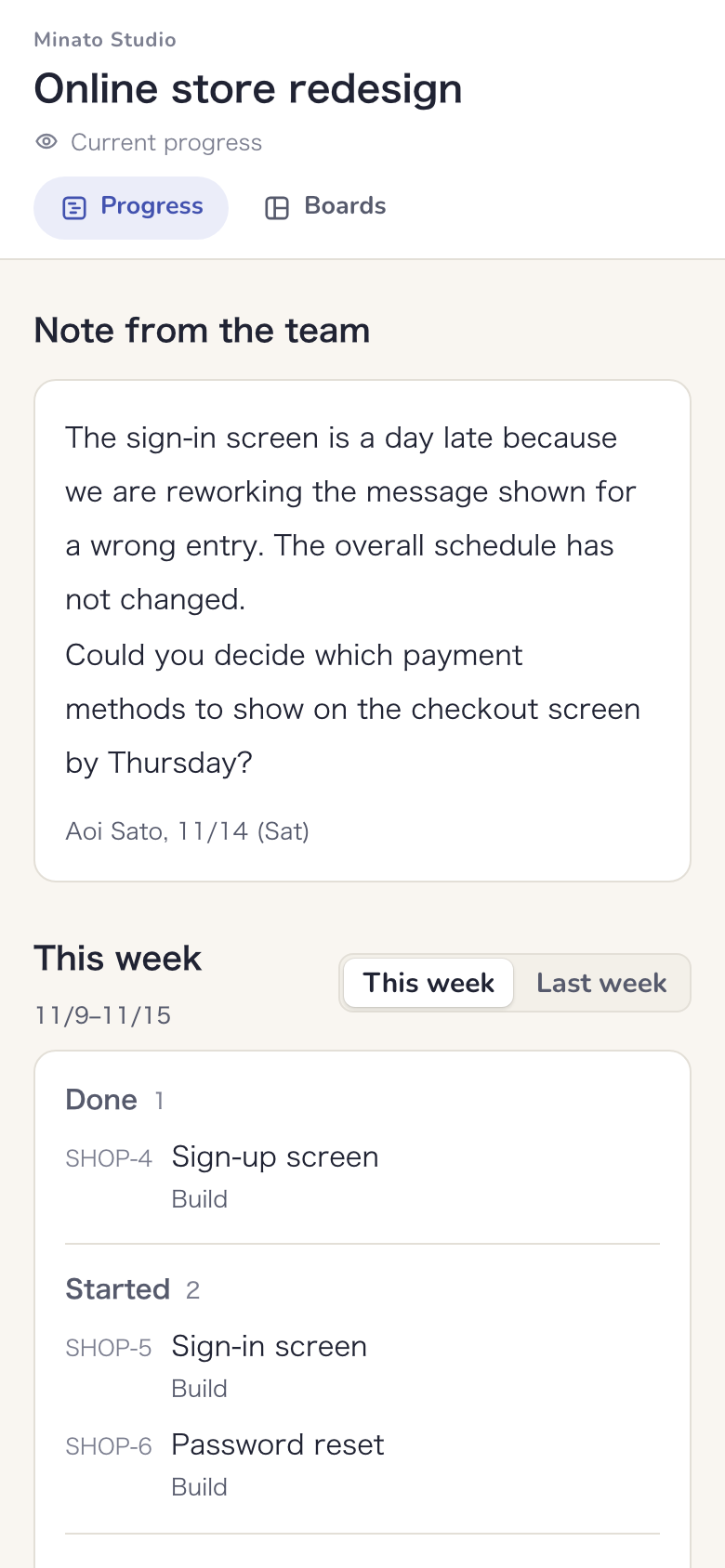
Show the client only what you choose
The current schedule and a list of what moved this week appear automatically on a page only the client can see. Nobody has to write a report. Clients sign in from a link in their email and can read it on their phone.
- Add a note from the team to explain a delay or ask the client for something
- Internal boards and comments never show
- See when the client opened the shared page
- External designers can join the same board as editors
Start for free
Free for up to 2 members and 1 active project. External participants and clients are free in any number, and no card is required. On Free, they can view and comment.