Features
From the first ideas to showing the client where things stand, it all happens on one board.
Start thinking right on the board
Place sticky notes, text, shapes, arrows, frames, images and link cards anywhere. Your team edits together in real time and talks things over in comments on whatever is on the board.
- Split the work into periods with phase frames
- Tidy up with align, distribute and text search
- Export any selection as a PNG image
- Mentions in comments also arrive by email
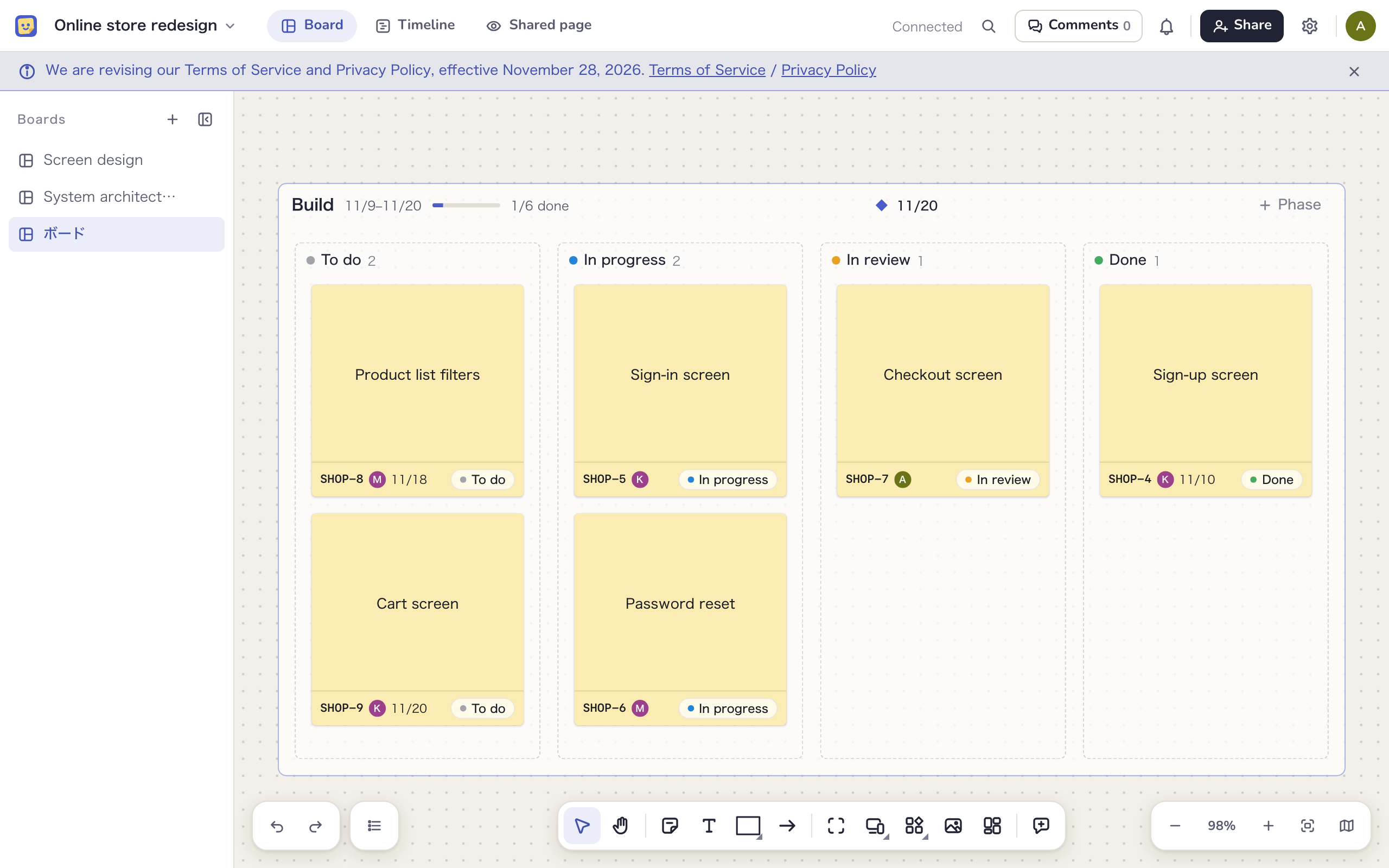
A sticky note becomes the task
Select a sticky note, frame or screen and choose “Make a task”. It gets a key and carries an assignee, start date, due date and status, so there is nothing to copy into a separate list.
- Move it to a status column and its status changes too
- Notes, links and comments sit together in the task panel
- Work logs and GitHub pull requests and commits are kept as activity
- Overdue tasks show in red on the board as well
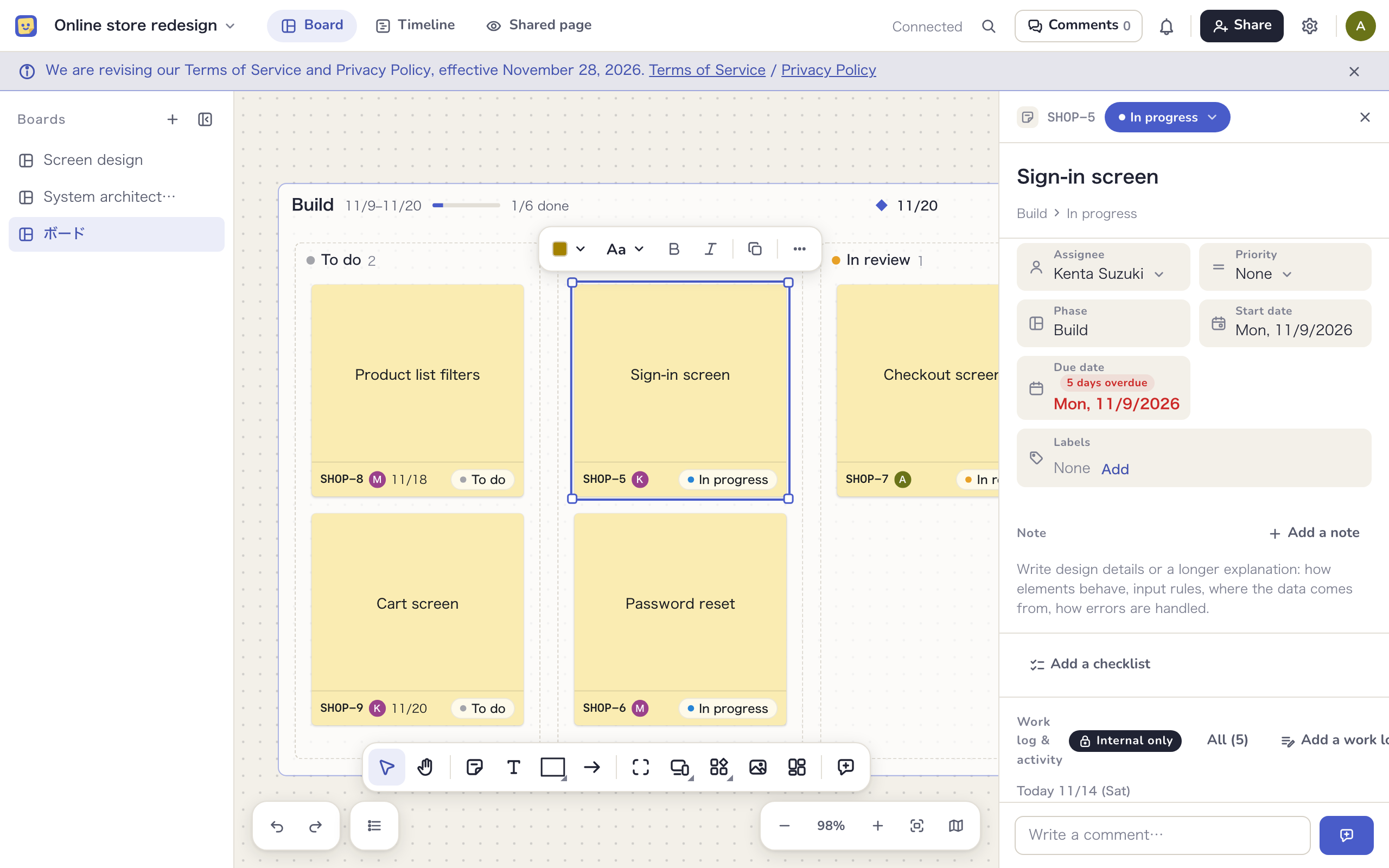
No separate schedule to maintain
Phases and task due dates become the timeline as they are. Drag the end of a bar to change a due date, and the sticky note on the board shows the same date.
- Switch between the timeline, calendar, long calendar and list
- Filter by assignee, status or screen
- Overdue tasks show how many days late they are, in red
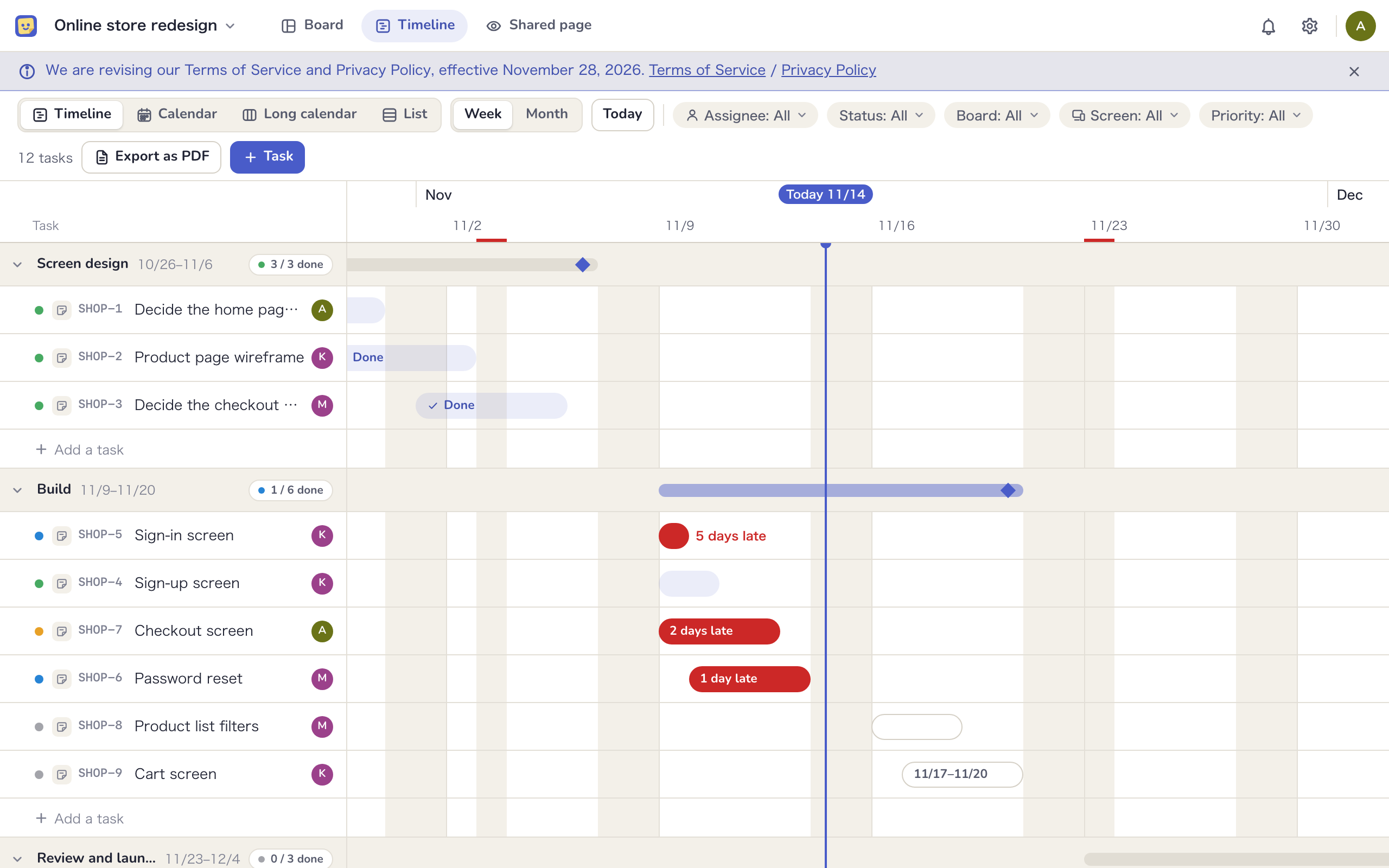
Screen design, right on the board
Build screens by arranging elements such as headings, inputs and buttons, and link them with flow arrows. There are no colors or fonts to pick, only the structure and the flow, so nobody mistakes it for the finished product.
- Choose desktop, tablet or phone sizes and a device frame
- Click through the flow in the preview
- Turn the headers and tab bars you reuse into components
- Hand screens and flows over as a design brief, to the people building them or to your AI
- Link Figma designs to screens and compare them
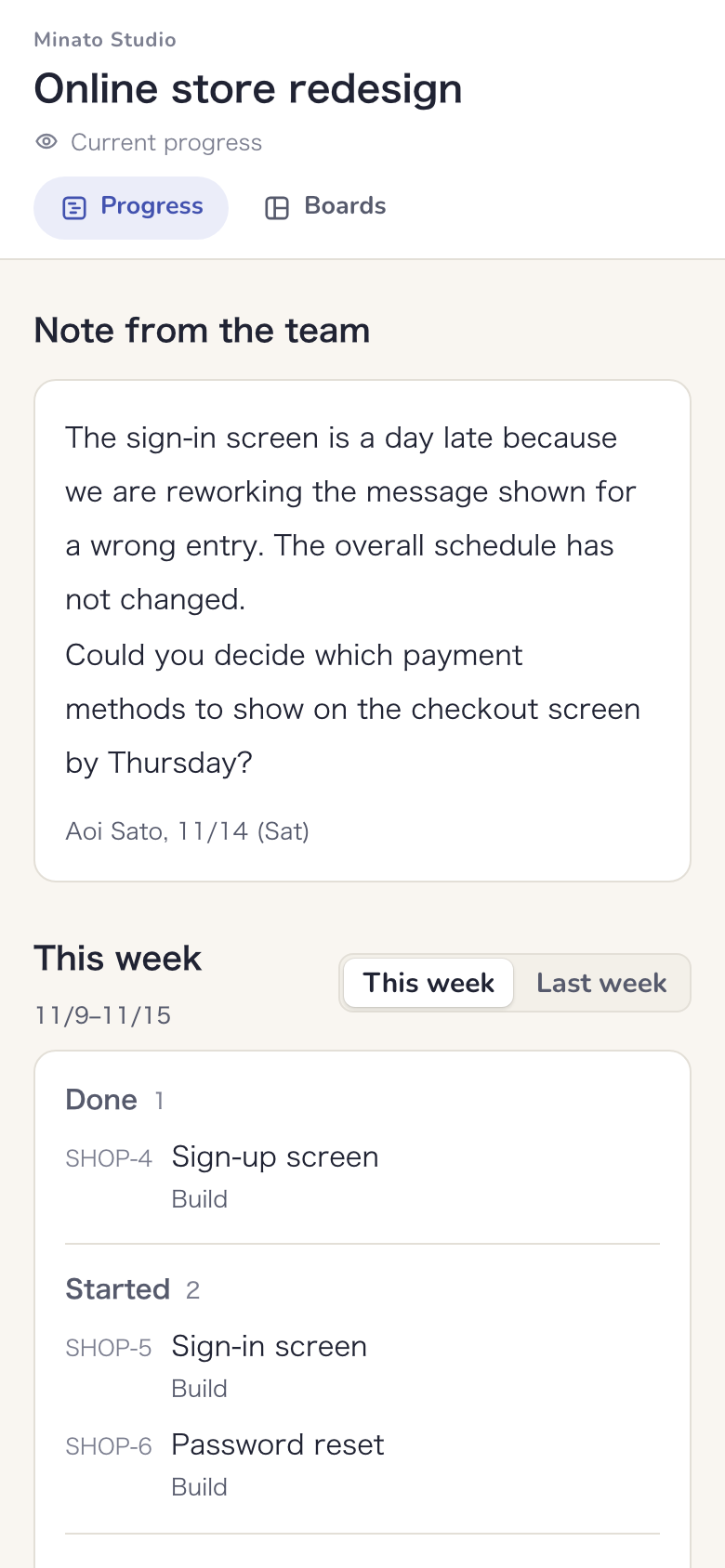
Progress reports you don’t have to write
As your team works on the board, the current schedule and a list of what moved this week appear automatically on a shared page only the client can see. Nobody has to write a report. Clients sign in from a link in their email and can read it on their phone.
- “This week” lists tasks by title (done, started, in review, due next), and you can switch to last week
- The schedule shows progress and late tasks for each phase as they stand now
- Add a note from the team to explain a delay or ask the client for something
- Internal boards and comments never show
- See when the client opened the shared page
- External designers can join the same board as editors
Your AI reads and writes the board
Connect an AI such as Claude or ChatGPT via MCP, and your AI can read and write the board, read design briefs and summarize progress from the work activity. There is no cap on the number of calls. The AI acts within the permissions of the person who connected it, and you choose read only or read and write when you connect.
Read
Your AI reads the board layout, task progress, screen flows and design briefs as they are.
Add and create
Ask for “three sign-in screens” or “make this note a task”, and it adds them to the board and creates the tasks. People can edit whatever it adds.
Progress summaries
From activity such as task changes and merged pull requests, your AI writes up this week’s progress right in the conversation. Edit it, then use it in an email, a chat message or the note on the shared page.
Mockedule has no built-in AI. With Claude Code, one line connects it.claude mcp add --transport http mockedule https://app.mockedule.com/mcp
And more
Templates
Start from one of seven layouts such as a sitemap, a screen flow or a kickoff, when you create a board or any time later.
GitHub
Put a task key in a branch name or pull request title, and the pull requests and commits become that task’s activity.
Figma
Link Figma frames to screens and compare them side by side in the preview.
Roles and permissions
Members, external editors and viewers, and clients each see a different scope. Internal-only boards and comments never leave your team.
Notifications
Mentions reach you in the app, and by email too if you leave them unread. Mentions and this week’s activity can also be sent to Slack and Chatwork.
Japanese and English
The app and its emails are available in Japanese and English.
Appearance
Switch between light and dark, and choose an accent color for each workspace.
Start for free
Free for up to 2 members and 1 active project. External participants and clients are free in any number, and no card is required. On Free, they can view and comment.