Mockedule has two levels of roles. Your workspace role sets what you can do as a member of the company, and your project role sets what you can do inside each project. People from outside your company do not belong to the workspace; they only have a role in the projects they were invited to.
Workspace roles
Only members of your company have a workspace role.
| Role | What they can do |
|---|---|
| Owner | Everything an Admin can do, plus changing the plan, the card and cancelling, transferring ownership, and choosing whether AI may make members Admins. Each workspace has exactly one Owner |
| Admin | Add, remove and change the roles of internal members; change workspace settings; view the audit log; view the plan and billing status. Can do everything a Manager can in every project |
| Member | Create projects and work in the projects they have joined |
Owners and Admins see every project on the workspace home; Members see only the projects they have joined. Only Owners and Admins can open workspace settings.
Add and remove internal members
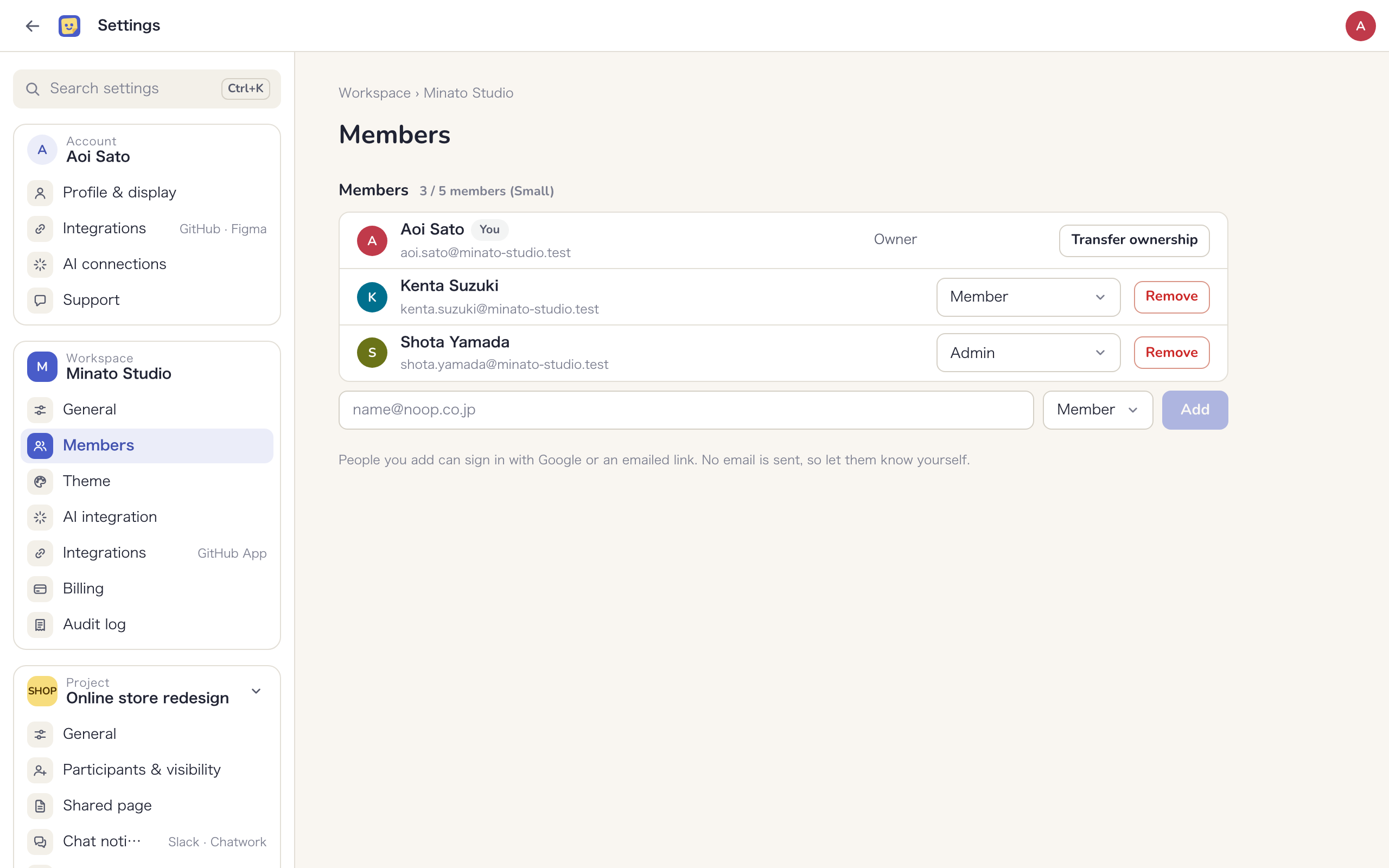
- From the gear on the workspace home, open workspace settings and choose “Members”
- Enter an address under “Email address of the person to add” and choose “Member” or “Admin” under “Role”
- Click “Add”
People you add can sign in with Google or an emailed link. No email is sent, so let them know yourself.
You can change a role at any time from the list. Click “Remove” to take someone out; they are disconnected from open boards and signed out.
You cannot remove or change the role of the Owner or yourself. The Owner can hand the workspace to another internal member with “Transfer ownership” on their own row, and then becomes an Admin. See Workspace settings for details.
Project roles
Each person has one role per project. Managers and Members must be internal members; the other three roles are for people outside your company.
| Role | For | Summary |
|---|---|---|
| Manager | Internal members | Can manage participants and write the note from the team on the shared page |
| Member | Internal members | Can edit boards and tasks |
| External editor | External | Can edit shared boards and tasks. Cannot see internal boards |
| External viewer | External | Can view shared boards and leave questions and requests in comments |
| Client | External | Can check current progress on the shared page, view boards and leave questions and requests in comments |
Whoever creates a project becomes its Manager. Workspace Owners and Admins can do everything a Manager can in every project, even ones they have not joined.
What each role can do
○ means allowed, △ means allowed with a condition, and − means not allowed.
| Action | Manager | Member | External editor | External viewer | Client |
|---|---|---|---|---|---|
| View shared boards | ○ | ○ | ○ | ○ | ○ |
| View and edit internal boards | ○ | ○ | − | − | − |
| Add and edit sticky notes and other objects on shared boards | ○ | ○ | ○ | − | − |
| Create boards, rename them, change visibility, archive them | ○ | ○ | − | − | − |
| Delete archived boards | ○ | − | − | − | − |
| Read and write comments visible to everyone | ○ | ○ | ○ | ○ | ○ |
| Read and write internal-only comments | ○ | ○ | − | − | − |
| Delete other people’s comments | ○ | − | − | − | − |
| Resolve threads | ○ | ○ | ○ | △ Threads they started | △ Threads they started |
| View the timeline, calendar and list | ○ | ○ | ○ | ○ | ○ |
| Make tasks and change status, assignee and due date | ○ | ○ | ○ | − | − |
| Be assigned to tasks | ○ | ○ | ○ | − | − |
| Create phases and change their dates | ○ | ○ | △ When allowed | − | − |
| Add work logs | ○ | ○ | △ Own tasks | − | − |
| View activity | ○ | ○ | △ Own work logs | − | − |
| Create, edit and delete labels | ○ | ○ | − | − | − |
| View the shared page | ○ | ○ | − | − | ○ |
| Write the note from the team on the shared page | ○ | − | − | − | − |
| Export PDFs | ○ | ○ | − | − | − |
| Create and turn off view links | ○ | − | − | − | − |
| Invite participants, change roles, remove people | ○ | − | − | − | − |
| Change project settings | ○ | − | − | − | − |
Everyone can see the participant list, but only Managers see participants’ email addresses and pending invitations. For details on each action, see Tasks, Comments and activity and Shared page and view links.
External participants
Clients, External editors and External viewers do not belong to the workspace. They see only the projects they were invited to, and never the workspace home or workspace settings. An “External” badge appears on their avatar on the board and next to their name on comments, so internal members always know when someone outside the company is looking.
Invite and remove people
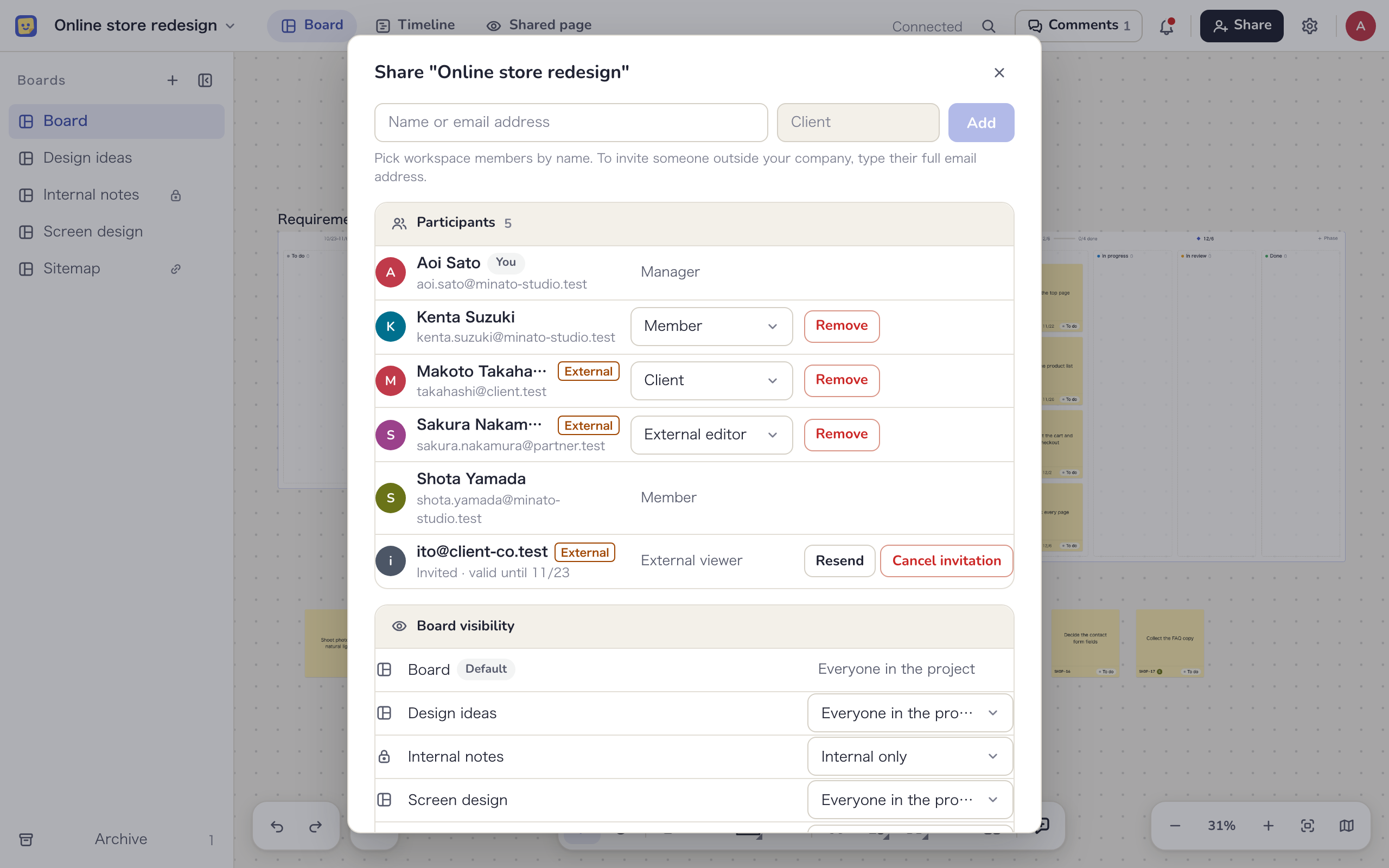
- As a Manager, open “Share” in the board header, or “Participants & visibility” in project settings
- Type the person’s full email address in the field and choose Client, External editor or External viewer under “Role”
- Click “Send invitation”. They get an invitation email with a link valid for 7 days
To bring an internal member into the project, pick their name in the same field, choose Manager or Member, and click “Add”. No invitation email is sent; they join right away.
Pending invitations show as “Invited” in the list, with “Resend” and “Cancel invitation”. See Getting started for what the invited person does.
To remove a participant, click “Remove” on their row. Tasks they were assigned keep their assignee, and their comments stay.
Let External editors manage phases
Phase dates are close to a promise to the client, so by default External editors cannot create phases or change their dates. To allow it, a Manager turns on “Let them create phases and change phase dates” under “What external editors can do”, in the “Share” dialog or in “Participants & visibility” in project settings. Sticky notes and tasks can always be edited, whatever this setting.
Internal-only boards and comments
Even in a project with external participants, you can keep internal conversations “Internal only”.
Internal-only boards
Internal-only boards have a lock icon in the board list and can be viewed and edited by Managers and Members only. Their tasks stay out of external participants’ timelines and lists, and external participants cannot be assigned to them.
- Set it under “Visibility” when you create a board, or with “Make internal only” in the board’s “…” menu. See Workspaces and projects for the steps
- When a board becomes internal only, external participants who have it open are disconnected right away. If the project has external participants, a confirmation names who will lose access
- Before showing an internal-only board to everyone again, check for sticky notes meant for internal eyes only
- A project’s default board cannot be made internal only
Internal-only comments
When internal members start a new comment on a shared board, they can set its visibility to “Visible to everyone” or “Internal only”. Internal-only threads can be read and written by Managers and Members only, and carry a lock badge.
- Visibility is chosen with the first comment only. You cannot change an internal-only thread to “Visible to everyone” later
- External participants are not suggested as mentions in internal-only threads
- Comments on internal-only boards are always internal only
When you choose “Visible to everyone”, the names and number of external participants who will see it are shown, so you can check before you write.
External participants on the Free plan
Clients and people from other companies do not count toward your internal member limit, so you can invite as many as you like. On the Free plan, however, external participants can only view and comment.
- You cannot invite someone as an External editor or change an external participant’s role to External editor. You can still invite Clients and External viewers
- External editors already in the project can keep editing
- To invite External editors, upgrade the plan. Only the Owner can upgrade
The Free plan allows up to 2 internal members. See Plans and billing and the pricing page for each plan’s limits.